Note: Fiduciary accounts cannot be Savings Club accounts.
Do not open an account or accept an application if you cannot form a reasonable belief that you know the true identity of the person seeking to open an account.
ALL legal documents for escrow accounts MUST be reviewed by Call Me Direct (CMD) for approval before proceeding with opening or revising an account.
Once documents are obtained, do the following:
- Scan and email all documents to _Call Me Direct to review.
- Call Me Direct reviews the documents and takes one of the following actions:
- Approves the account opening or change
- If the documents are approved, CMD completes a Document Review Coversheet and emails the associate opening/revising the account.
-
The Document Review Coversheet from CMD MUST be imaged with account documents.
- Note: MUST have account number written in the top right corner.
- Denies the account opening or change.
- Approves the account opening or change
To open a new Escrow account, do the following:
Beginning Process
- If the client is new to CCB, meet him or her in person.
- Ask the client to complete the Client Profile sheet. Once completed, review and discuss immediate and future needs and expectations.
- Place the Personal Account/Cross-Sell Information sheet facing the client. Ask the client to complete the bottom portion of the sheet, then assist the client in selecting the account that best meets his/her needs. (For more information see New Account Qualifying Questions.)
- Explain the account benefits including minimum balance requirements and additional services available (Fiduciary Access to Debit Cards and Online Banking Services, Bounce Protection, Mobile Banking, Zelle, and Bank Direct services).
- For product types, features, and benefits details, see the Product Knowledge Center.
- Cross-sell additional products and services to meet the client's needs using the Personal Account/Cross-Sell Information sheet.
- Discuss office locations, business hours, Instant Issue locations, ITM Locations, and CCB history.
- Depending on the type of client, do one of the following:
New Clients
Obtain one primary and one secondary or two primary forms of identification from all owners and signers. Note: All primary identification must be valid (not expired) and contain a photograph.
Existing clients
Request one form of primary identification. In addition, you can request the Inquiry Identification Code (IIC) from the client.
- Carefully examine the identification for the expiration date, client’s date of birth, photograph, and signature of the client. Note: If the personal identification documentation is not provided, do not open the account. See Detecting Red Flags in ID Verification.
- Obtain the appropriate legal documentation for the corresponding fiduciary account type. Note: Documentation MUST be provided to Call Me Direct for review and approval prior to opening a fiduciary account.
- Click the links below for details on the required documentation:
Query for existing personal CIF
- In Xperience > SilverLake > CIF Menu > CIF Inquiry.
- Search by client TIN.
- If you do not find an existing CIF, navigate to Building a Personal CIF.
- For each CIF found, click the client name or CIF. Note: Query the existing account and relationship CIF(s), and ensure the following information is up-to-date:
- Inquiry Identification Code -- required
- Mailing address
- IRS address
- Phone number(s)
- Email address
- Primary and secondary identification information (for example: number, issue date, expiration date)
- In Xperience > SilverLake > StreamLine Platform Menu > Create New Accounts.
- On the Inquiry/Website Selection page, determine if a ChexSystems inquiry is required.
- If an inquiry is required, check Inquire using ChexSystems.
- Click OK.
- Once the StreamLine New Account Entry page displays, continue by clicking the appropriate tab.
Escrow
On the StreamLine New Account Entry page, do the following:
- In the Branch field, enter Branch number.
- From the Application drop-down menu, choose D - DDA.
- In the Platform Type field, click the ellipsis
 for product options.
 - Select the product type.
- Click OK.
- In the Account Number field, click the ellipsis
 to populate the account number and click OK.
 - Enter the client's name (LAST name FIRST name), CIF #, or TIN based on the information below.
Individual Client Escrow
- Enter the owner's name (LAST name FIRST name), CIF #, or TIN.
- Check that the owner's provided TIN matches the TIN listed on the account. If it does not, do not open the account. Note: Xperience displays the following message: Existing Customer found. Click to Select.
- Double check the relationship codes.
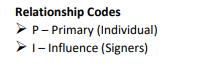
- Click Select.
Multiple Client Escrow
Funds are held for a group of clients. Use the escrow agent’s TIN for IRS reporting.
- Enter the escrow agent's name (business name or sole proprietor).
- Check that the owner's provided TIN matches the TIN listed on the account. If it does not, do not open the account. Note: Xperience displays the following message: Existing Customer found. Click to Select.
- Double check the relationship codes.
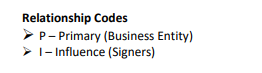
- Click Select.
Qualified Intermediary Escrow
When the funds are held for one owner or for qualified intermediary escrow, use the individual owner's TIN for IRS reporting.
- Enter the owner's name (LAST name FIRST name), CIF number, or TIN.
- Check that the owner's provided TIN matches the TIN listed on the account. If it does not, do not open the account. Note: Xperience displays the following message: Existing Customer found. Click to Select.
- Double check the relationship codes.
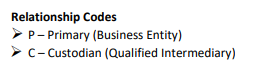
- Click Select.
- Click OK.
- If the client is using an alternate mailing address, make the appropriate selection and enter information accordingly. For more information see the Alternate Address tab under Address Changes.
- Click OK.
- In the Short name, CIF, or TIN number field, delete the client name.
- In the Short name, CIF, or TIN number field, enter the influence (authorized signer) name (LAST name FIRST name).
- Click OK.
- Click Display.
- Click Select.
- In the Relationship Details section, click the ellipsis
 then Next Records to choose one of the following:
Individual Client Escrow
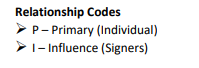
Multiple Client Escrow

Qualified Intermediary Escrow
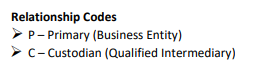
- Click Select.
- Click OK. Xperience now displays both the primary and influence under the Relationship field.
- Delete the client name in the Short name, CIF, or TIN number field.
- Click OK.
- If required, on the Deposits Master screen click the ellipsis
 to add an Account Officer Code.
 - Click OK.
-
Title the account in the Customer Details fields depending on the type of escrow account as follows:
Individual Client Escrow
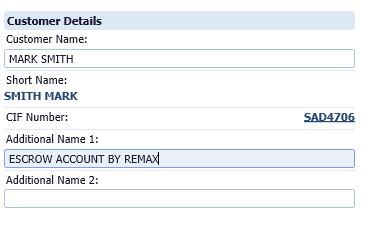
- Title the account in the owner’s name. {Client's name} auto-populates in the Customer Name field.
- In the Additional Name 1 field enter the name of the authorized signer (influence) . Example: Escrow Account By Remax.
Multiple Client Escrow
A business can hold funds for more than 1 client or multiple clients deposited into the same account, still keeping the funds separate from their operating funds.
- Title the account in the escrow agent’s name. {Client's name} auto-populates in the Customer Name field.
- In the Additional Name 1 field enter Escrow Account.

Qualified Intermediary Escrow
- Title the account in the escrow agent’s name. {Client's name} QUALIFIED INTERMEDIARY ESCROW auto-populates in the Customer Name field.
- In the Additional Name, 1 field enter the name of the authorized signer (influence) as Qualified Intermediary. Example: Bill Jones as Qualified Intermediary.

Line 1 Is this a New Account?
- Click the ellipsis .
- Select Y Yes.
- Click the ellipsis
Line 2 Reg E ATM/OD Opt-in Flag
Escrow accounts are not eligible for bounce protection. For more information see Regulation E.
- Click the ellipsis .
- Select D DECLINE.
- Click the ellipsis
Line 20 Class Code
- Click the ellipsis
 .
. - Click Next Records.
- Choose F FIDUCIARY.
- Click Select.
- Click the ellipsis
Line 30 Initial Deposit Amount
Enter the amount the client will deposit. Note: The initial deposit must be either $50 in cash or in approved checks. This information prints on the signature card.
-
Line 45 Primary CIF Inquiry Code
Enter this code when building the CIF. If the field is blank, ask the client to choose an Inquiry ID Code.
Line 160 Marketing Code
- Click the ellipsis
 .
. - Select the appropriate code (for example: BB Billboard, CA Consumer Deposit Acquisition, RF Referral, Friend, Family, FB Facebook).
- Click the ellipsis
Line 990 Source of Funds
- Click the ellipsis
 .
. - Choose one of the following:
- G Existing Client - New $ Bank
- G1 Existing Client - Existing $
- 1N New Client
- Click Select.
- Click the ellipsis
- Click OK.
- Verafin launches in a new window.
- Complete a Due Diligence questionnaire using Verafin. For more information on Verafin click here.
- Xperience displays a message indicating all fields have been verified.
- Click OK.
-
Line 10 Ownership of Account
- Click the ellipsis.
- Click Next Records.
- Based on account type, select one of the following:
Individual Client Escrow
- S SINGLE-PARTY ACCOUNT (Florida/Alabama)
- I INDIVIDUAL (Georgia)
Multiple Client Escrow
Choose the appropriate option for the type of business:- CP Corporation
- LL Limited Liability Company
- SP Sole-Proprietorship
- PA Partnership
Line 120 If NEW Account, was the Verafin Questionnaire completed?
- If creating a new account, enter Y - Yes.
- If revising an account, enter N- No.
- Click the ellipsis
Line 140 If Revised Account, was CIF and Verafin Questionnaire Updated?
- If creating a new account, enter N - No.
- If revising an account, enter Y - Yes.
Line 260 Is this a Business Account Type?
- Click the ellipsis .
- Based on account type, select one of the following:
Individual Client Escrow
- Select N NO.
- Click Select.
Multiple Client Escrow
- Select Y YES.
- Click Select.
Qualified Intermediary Escrow
- Select Y YES.
- Click Select.
- Click the ellipsis
Line 265 Is Business a Foreign Entity?
- Click the ellipsis .
- Select one of the following:
- N NO
- If the signer is W8-BEN-E select Y Yes.
- Click Select.
- Click the ellipsis
Line 270 Is this a Fiduciary Account Type?
- Click the ellipsis .
- Based on account type, select one of the following:
Individual Client Escrow
- Select Y YES.
- Click Select.
Multiple Client Escrow
- Select N NO.
- Click Select.
Qualified Intermediary Escrow
- Select N NO.
- Click Select.
- Click the ellipsis
- Click OK. Xperience displays a message indicating all fields have been verified.
- Click OK.
Line 10 Rights at Death
- Click the ellipsis .
- Select S - Single Party Account (Florida and Alabama only).
- Click the ellipsis
Line 50 Do you have more than 4 signers?
- Click the ellipsis .
- Select N NO.
- Click Select.
- Click the ellipsis
- Click OK. Xperience displays a message indicating all fields have been verified.
- Click OK.
- On the Optional Record Items screen, select all that apply:
- On the StreamLine New Account Entry screen, from each drop-down menu choose:
- View/Print/Email Documents? Select Y - Yes.
-
Upload Account? The system defaults to N-No.
- Click View Documents.
- In the View Order box type 1 for the FL Signature Card to review the signature card for accuracy prior to uploading the account.
-
Another account for these customers?
- Select N - No.
- If the client has no more accounts to be opened for the client click OK.
- If the client wishes to open another account (for example: Savings) select Y - Yes.
- Click OK.
- From the Submit to eSign drop-down menu select B - Both eSign and Print for Print Selection items.

- Click OK. A new window opens for eSign. See eSign for more information.
- Determine if the information under the Backup Withholding Certifications section.
- Certify the TIN of the primary owner.
- If the client registered for Online Banking, advise the client that he/she will be required to accept the Online Banking Terms & Conditions when first logging in to Online Banking.
- Give the client the welcome packet and all required disclosures and brochures including the Terms and Conditions brochure, the Services and Fees brochure, Truth-in-Savings Disclosure, and Truth-In-Savings Addendum.
- Review the materials with the client.
- Give a copy of the signature card to the client.
- Ensure the client reviews the signature card for accuracy of the information he/she has provided and acknowledges receipt of a completed copy of the form.
- For Florida accounts, ensure the client initials the Ownership and Rights at Death Sections.
Specific Account Additional Requirements
Escrow -- For accounts with a single individual, obtain the W9 of the individual owner from the escrow agent.
- If all documents have been signed using an eSign upload account, submit them using eSign. Any documents not submitted through eSign place with the daily work for imaging following the Document Imaging procedures.
- For a resolution, do the following (not every account has a resolution):
- Have the client verify all information on the resolution.
- Have the designated signers complete the Powers Granted section to indicate that those designated by legal documents or the supporting affidavit have the authority to perform the following acts:
- Endorse checks and orders for the payment of money
- Make withdrawals
- Transfer funds on deposit with CCB
- If the client wants checks, order new checks in Streamline. The client’s account is automatically debited in 3-4 weeks.
- Accept the opening deposit from the client, which must be either $50 in cash or $50 in approved checks. Note: For opening deposits made by check(s), see place a new account hold.
- Complete the appropriate credit memo ticket for the following accounts:
- Checking/money market account – Checking/MMA credit memo
- Savings/Club account – Savings/Club credit memo
- Complete the following information legibly on the credit memo:
- Date
- Title of account
- Account number
- Tran. code
- Client's initial deposit
- Approved by
- Write the client's initial deposit legibly above the account number.
- Take the credit memo ticket to the teller line with the new account deposit.
- The teller completes the deposit transaction and provides a receipt to the client.
 Georgia


Quick Reference Guide
Legal Documents
Note: Documentation MUST be provided to Call Me Direct for review and approval prior to opening a fiduciary account.
Individual Client
- Escrow agreement from the real estate company or the law firm authorizing the agent or attorney to act on behalf of the individual client as an escrow agent
- W-9 signed by the individual client and owner of the funds
Multiple Client
- Documentation on business entity
- CCB affidavit
All revised accounts require the following:
- CCB affidavit
- Updated/revised by-laws or meeting minutes documenting required changes
Qualified Intermediary Escrow
- Documentation on business entity
- Qualified Intermediary and Escrow Agreement authorizing the 1031 real estate transaction and establishing the qualified intermediary
- Assignment of contract rights
- CCB affidavit
- Updated/revised by-laws or meeting minutes documenting required changes
Verafin
Multiple Client
Certification of Beneficial Owners of Legal Entities (Required for ALL new/revised accounts)
Qualified Intermediary
CIP/CIF Requirements
- EIN Number for Business Entity
- Primary & Secondary ID viewed for ALL signers present
- Social Security Number or Individual Tax Identification Number for ALL signers present
- Name, Address, Date of Birth, and Occupation for ALL signers NOT present
- W8-BEN (Non-resident Alien ONLY)
Account Title & Signature Requirement Examples
Title Individual
- MARK SMITH
ESCROW ACCOUNT BY REMAX
Title Multiple
- CENTURY 21 REAL ESTATE CORPORATION
ESCROW ACCOUNT
Title Qualified Intermediary
- JOHN BROWN QUALIFIED INTERMEDIARY ESCROW
BILL JONES AS QUALIFIED INTERMEDIARY
Signature (Individual & Multiple)
- ALL authorized signers
Signature (Qualified Intermediary)
- Bill Jones
Authorized signers
Codes for Building CIF
-
Class Code
-
Tax ID Code
- T - Business (Business Entity)
- I - Individual - US Citizen or Resident Alien (Individual/Signer(s))
- B - No SSN-Non Reporting Individual (Signer(s) not present)
- F - Non-Resident Alien - ITIN (Individual/signer(s))
- G - Non-Resident Alien - SSN Work Only (Individual/signer(s))
- H - Non-Resident Alien - SSN Non Work (signer)
- E - Non-Resident Alien - No TIN/DOES NOT meet the SPT (leave SSN field blank)
-
Identification Code (Multiple & Qualified Intermediary)
- Based on Business Entity Type (for example: Corporation, LLC Partnership, etc.)
- Enter "NA" in the Identification Number Field
- Based on Business Entity Type (for example: Corporation, LLC Partnership, etc.)
-
FinCen Legal Entity - Always Select "Exclude"
- Exclusion Reason
- CV - Capture in Verafin (Business) - (Multiple or Qualified Intermediary)
- FP - Foreign Person (Non-Resident Alien)
- NP - Natural Person (US Citizen or Resident Alien)
- Exclusion Reason
-
Insider Code (if applicable)
- C - Community Board Member
- D - Director
- E - Associate
- O - Officer
- X - Executive Officer
Codes for Creating Account
-
Account Class Code
- F - Fiduciary
-
Ownership
Multiple & Qualified Intermediary
Based on Business Entity Type (for example: Corporation, LLC, Partnership, etc.)
Delete
-
Relationship Code
- P - Primary (Individual/Business Entity)
- I - Influence (signer(s))
-
Is this a Business Account Type?
- Individual
- N - No
- Multiple & Qualified Intermediary
- Y - Yes
- Individual
-
Is Business a Foreign Entity?
- N - No
- Y - Yes (W8-BEN-E)
-
Is this a Fiduciary Account Type?
- Individual
- Y - Yes
- Multiple & Qualified Intermediary
- N - No
- Individual
-
Rights at Death (Individual)
- S - Single Party Account (Florida & Alabama Only)